Clipping Path Source

  • Home
  • Services
    • Clipping Path Service
    • Image Background Removal
    • Image Masking Service
    • Photo Retouching Service
    • Drop Shadow Service
    • Ghost Mannequin Service
    • Raster to Vector
    • Photo Enhancement
    • eCommerce Photo Editing
    • Color changes
    • Multi Clipping Path Services
    • Car photo editing service
    • Image editing services
  • Pricing
  • Blog
  • Contact
    • About Us
  • Quotation
  • Login
FREE TRIAL

Using Layers In Photoshop – A Comprehensive Beginners’ Tutorial

Using Layers In Photoshop – A Comprehensive Beginners’ Tutorial

by Sayadul Arafin Tamjid / Monday, 13 July 2015 / Published in Tutorial

>> What you’ll learn in this article

Toggle
  • The layer panel
  • Creating a new layer
  • Duplicating a layer
  • Alternating the layers’ positions on the image
  • Hiding or deleting a layer
  • Changing the name of the layer
  • Changing a layer’s mode
  • Changing a layer’s color
  • Adjusting a layer’s transparency
    • Good finds? Share them
Every image in Photoshop is edited using layers are used and finally stake together to get the best effect as desired and will show the appearance of the effect. Every Photoshop user should have complete knowledge of the use of layers in Photoshop software.

Here is the complete brief for the Photoshop beginners about “how to use layers in Photoshop”

The layer panel

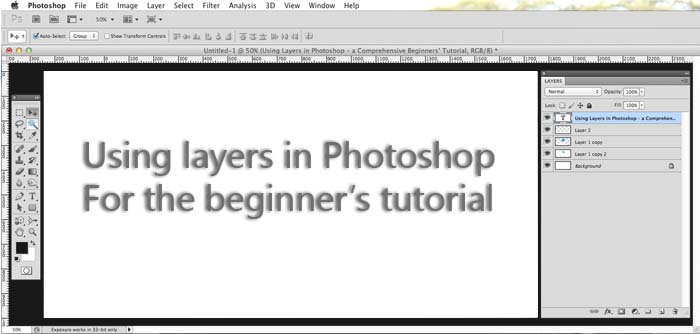
The layers panel in Photoshop gives you complete access to the individual layers to create, design, and re-design the layers you are using to edit an image. The layers panel also enables you to have all the features to manipulate and design the layers simply.

Creating a new layer

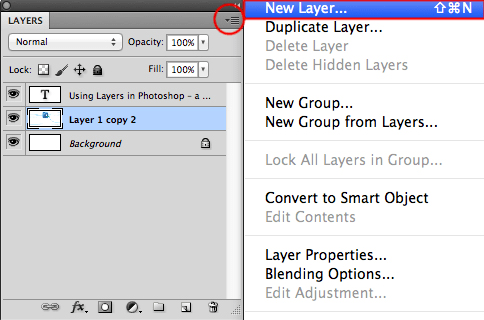
It is necessary need to create or add a new layer to edit the image or achieve a certain effect or appearance on that image. The following may require creating or adding a layer in Photoshop layer panel:

There is about two ways to get it done –

Find the upper right corner of the layer panel and click on the resulting menu shown as “new layer”.
Ready to experience professional photo editing with consistency you can trust?
Try two free edits >

creating-a-new-layer-in-photoshop

Or you can simply find the “new layer” option located at the bottom of the Layers panel.
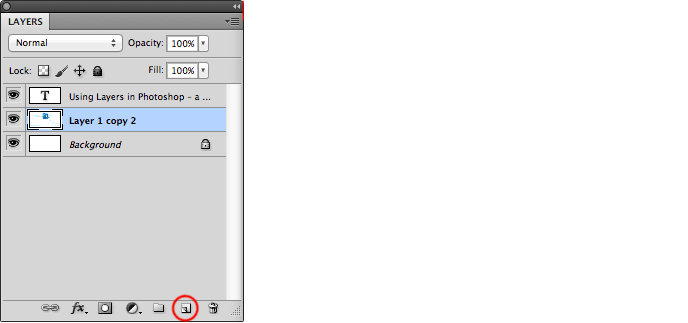
creating-new-layer-in-photoshop-software

Duplicating a layer

You can also create a duplicate layer to get another layer to have an existing effect. Then click on the right of the mouse and there you will find an option called “duplicate layer” from the resulting menu. Here you will find an option to add the layer on the same image or another image,  to add the layer to the same image you may simply give it a name and select “Okay”
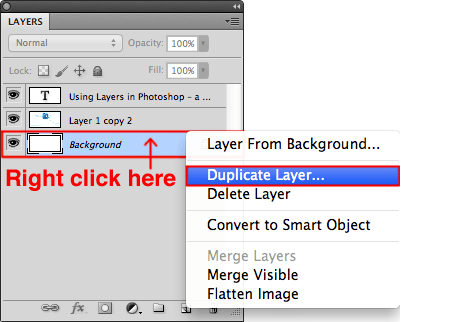
duplicate-the-layer

If you need to add the layer in a different image, type the title of that document titled as “destination” and renames the title and then clicks “Okay”

Alternating the layers’ positions on the image

At the time of working on any image, you will find all the layers in the layers panel arranged to their default position. If you want to change the layer position you can just click on the layer which you won’t change the position then drag it to the other one to replace the position.

How to Add a Shadow in Photoshop for Product Photos
Learn More

Hiding or deleting a layer

Sometimes you may need to hide the layer and you may want to observe the image without the layer or you can delete the layers if it is unwanted. To make a layer invisible, you will find before every layer an icon like an Eye. Just click on the icon and see the result as it is invisible and again if you click on the icon the layer will be visible as before. To delete a layer you just drag the layer along you want to delete and put it on the delete icon shown below of the layer panel.

Changing the name of the layer

You can also change the name of your layer. Sometimes you may need to change the layer’s name to make it specified or make it easy to find which work you did in which layer.

Changing a layer’s mode

If you want you can change the layer mode to change or manipulate the appearance. To change the mode you please go to the labeled opacity on the layer menu and then click on the labeled named as “normal” on the left side of the opacity tab. There will open a drop-down menu with lots of menu modes to choose from, then just one of the menu you desired and enjoy the effect.

15 Best Websites to Sell Photos Online in 2025- Maximize Your Earnings
15 Best Websites to Sell Photos Online in 2025: Maximize Your Earnings
Learn More

Changing a layer’s color

Sometimes you may need to change the layer color/background color go get to see the proper result after edited any image to judge the desired quality.

To change the layer color- at first, you have to go to the specific layer and click on the left button of your mouse there you will find several options and among them, there is an option and there you will find the several color sorted by name or by color highlighted- simply click on the preferred color to change the layer’s color.

Best Alternative to Lightroom
The Best Alternatives to Adobe Lightroom: Smart Options
Learn More

Adjusting a layer’s transparency

A layer on an image does not have to be opaque – it can be partially transparent to make the layer beneath it visible, even if only partially. To increase a layer’s transparency or opacity, simply adjust the opacity percentage from the layer’s panel – it is located just above the layers.

Save

Let us take care of your image editing—so your time stays where it matters. Start free.
Learn more
photoshop pen tool for clipping path service
Let our experts handle your background removal with crisp, hand-made clipping paths—so you can focus on what matters most.
Start free now

Good finds? Share them

COPY URL
Copied!
Tagged under: how to use layer in photoshop software, how to use layers in photoshop, using layers in photoshop, Using Layers in Photoshop – a Comprehensive Beginners’ Tutorial

About Sayadul Arafin Tamjid

Hi, I’m Tamjid, CEO of Clipping Path Source, and a seasoned expert in image editing and SEO. With a commitment to excellence and a creative approach, I consistently deliver high-quality results across every project. My passion for graphic design drives me to share industry insights and uphold exceptional service standards, empowering clients to achieve their goals with confidence.

What you can read next

Background Removing Using Adobe Photoshop CS6 Tutorial:
Using photoshop and lightroom in Smartphone
How to Photoshop on a Smartphone | Tips, Tricks and Tools to Use
How To Remove Background From Hair In Photoshop CC18

Get our weekly insights and tips

Subscribed for the newsletter

Recent Posts

  • How to Add a Shadow in Photoshop for Product Photos

    How to Add a Shadow in Photoshop for Product Photos

    0 comments
  • What Is Photo Editing? A Complete Professional Guide to Modern Photo Editing

    What Is Photo Editing? A Complete Professional Guide to Modern Photo Editing

    0 comments
  • Why Top Brands Still Rely on Manual Clipping Path

    Why Top Brands Still Rely on Manual Clipping Path

    0 comments
  • Human-AI Collaboration in Photo Editing: Where Automation Ends and Expertise Begins

    Human-AI Collaboration in Photo Editing: Where Automation Ends and Expertise Begins

    0 comments
  • Photoshop Clipping Path Service

    Photoshop Clipping Path Service: The Ultimate Professional Guide for E-commerce, Photography, and Digital Marketing

    0 comments

Categories

  • Article
  • Clipping path
  • Clipping Path Source
  • Ecommerce business
  • Erase tool
  • Graphic designer
  • Image Editing Service
  • Photo retouching
  • Photographer and Photography
  • Product Photography
  • Raster to vector conversion
  • Review
  • Sports Photography
  • Tips and tricks
  • Tutorial
  • Website image optimization

Services

  • Clipping path service provider at affordable price.
  • Image shading
  • Photoshop masking
  • Photo retouching
  • Raster to vector
  • Mannequin removing
  • Photo enhancement
  • Image stitching
  • eCommerce product images editing

About us
Gallery
Blog
Privacy policy
Term and conditions
Request an FTP Access
Glossary

Contact us
FAQ
Services
Partnership
Refund policy
Sitemap
Testimonials

Recent posts

  • How to Add a Shadow in Photoshop for Product Photos

    How to Add a Shadow in Photoshop for Product Photos

    Elevating how to add shadow in Photoshop for pr...
  • What Is Photo Editing? A Complete Professional Guide to Modern Photo Editing

    What Is Photo Editing? A Complete Professional Guide to Modern Photo Editing

    Photo editing is one of the most important part...

Headquarter


2360 Stony Brook Dr Louisville KY 40220.
Phone: USA: +1 (929) 226-9462
Mail: [email protected]
Web: www.clippingpathsource.com

DMCA.com Protection Status   FRANÇAIS | ITALY | N. LANDS | GERMANY

  • GET SOCIAL

© 2026. All rights reserved Clipping Path Source.

TOP
  • USD $ USA Dollar
  • EUR € Europian Euro
WhatsApp us