
The Best Alternatives to Adobe Lightroom: Smart Options for Photo Editing and Management
If you’re looking for the best alternatives to Adobe Lightroom, the key is to find software that offers similar functionality—without sacrificing performance or creative flexibility. A worthy Lightroom alternative should include a robust suite of features such as powerful organizational and cataloging tools, non-destructive RAW editing, HDR capabilities, advanced color grading, and support for modern tools like the new HSL Point Color adjustments and custom editing presets.
Many Lightroom alternatives also integrate well with other popular editing software, including Adobe Photoshop, allowing photographers to maintain a seamless workflow without being tied entirely to Adobe’s ecosystem.
Whether you’re a professional photographer looking for high-end precision or an enthusiast seeking budget-friendly solutions, there are excellent alternatives available—both paid and free.
Key Features of Adobe Lightroom: What Sets It Apart
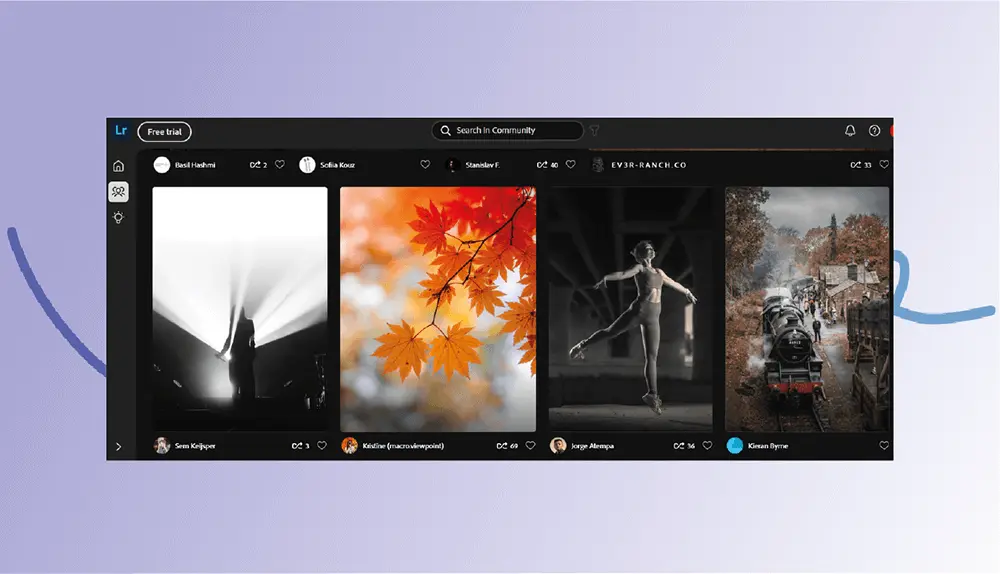
Before diving into the best alternatives, it’s important to understand what makes Adobe Lightroom such a widely trusted tool among photographers. Lightroom isn’t just a photo editor—it’s a powerful all-in-one solution for organizing, enhancing, and managing large image libraries efficiently. The tools it offers have become industry standards, and any viable alternative should be measured against this benchmark.
Here’s a breakdown of Lightroom’s core features that have made it the go-to choice for so many creatives around the world:
User-Friendly Interface
Lightroom is known for its clean, intuitive interface that caters to both beginners and professionals. Its layout is designed to minimize distraction while maximizing creative focus. With a short learning curve, users can quickly find themselves navigating through large collections, making adjustments, and exporting images with ease.
Advanced Photo Management & Organization
At its heart, Lightroom is a digital asset management (DAM) powerhouse. It allows photographers to tag, sort, and categorize thousands of images effortlessly. Features like keyword tagging, smart collections, flags, ratings, and metadata filters help maintain a highly organized workflow—ideal for large-scale projects or high-volume shooters.
Non-Destructive Editing
One of Lightroom’s defining features is its non-destructive editing engine. Every adjustment—from exposure tweaks to color grading—is applied as a set of instructions on top of your original image, leaving the original file untouched. This allows endless experimentation without the fear of ruining your source material.
RAW File Processing
Lightroom supports a wide range of camera RAW formats, allowing precise control over image exposure, highlights, shadows, color tones, and fine details. Editing in RAW ensures the highest image quality is preserved throughout the editing process.
Comprehensive Yet Intuitive Editing Tools
While not as advanced as Photoshop in terms of pixel-level editing, Lightroom still provides a rich suite of tools for global and local adjustments. These include cropping, tone curves, HSL/Color panels, noise reduction, lens corrections, and gradient or brush-based local edits—perfect for fine-tuning without complexity overload.
Tethered Shooting Capabilities
For studio photographers, Lightroom offers tethered shooting support, allowing cameras to be connected directly to the computer. Images appear instantly in Lightroom upon capture, streamlining the shoot-to-edit workflow.
AI-Powered Enhancements
Lightroom is increasingly adopting AI-driven tools to speed up editing and improve results. Features like Generative Remove (for object removal), Lens Blur, adaptive presets, automated sky selection, and AI masking tools bring efficiency and precision to everyday editing tasks.
Cloud Sync and Cross-Platform Access
Thanks to Adobe’s cloud ecosystem, Lightroom users can seamlessly sync their edits and catalogs across devices—desktop, mobile, and web. It also integrates natively with Photoshop, allowing for complex edits with a single click and smooth back-and-forth transitions.
Presets and Batch Processing
Lightroom supports a robust preset system, which is ideal for speeding up repetitive tasks or maintaining a consistent editing style. Users can create and apply custom presets to individual images or entire batches in just a few clicks, saving countless hours during post-production.
Learning Hub and Creative Community
Lightroom offers more than just software—it gives access to a vibrant learning ecosystem. Through in-app tutorials, user-shared presets, collaborative feedback options, and Adobe’s own customer support, users are never left in the dark. Whether you’re learning a new feature or troubleshooting an issue, help is always nearby.
With this powerful set of tools, Lightroom has rightfully earned its place at the top of the photo editing world. The challenge for any alternative is not just to match Lightroom’s editing capabilities, but to also offer an equally effective workflow for managing, organizing, and enhancing images at scale.
How Much Does Adobe Lightroom Cost in 2025?
If you’re considering Adobe Lightroom for your photo editing needs, understanding the pricing options is essential—especially given Adobe’s subscription-based model. Lightroom is available in a few different plans, depending on how much storage you need and whether you also want access to other Adobe apps like Photoshop.
Lightroom Plan (Cloud-Based Only)
The standalone Lightroom plan, which is the cloud-based version (not Lightroom Classic), is priced at $9.99/month, totaling $119.88 per year. This plan includes:
- Access to Lightroom on desktop and mobile
- 1TB of cloud storage
- Basic Adobe features for organization and editing
You can choose to be billed monthly or pay annually up front. Keep in mind, if you cancel early (before the end of your 12-month term), Adobe typically charges an early cancellation fee.
✨ Bonus: Adobe offers a 7-day free trial so you can test it before committing.
Photography Plan: Lightroom, Lightroom Classic & Photoshop
For photographers who want a bit more power, Adobe’s Photography Plan is a great all-in-one package. It includes:
- Lightroom (Cloud-Based)
- Lightroom Classic (Desktop-Based)
- Photoshop (Desktop and iPad)
- 1TB of cloud storage
This bundle costs $19.99/month with a one-year commitment, or $239.88 if you pay annually. It’s ideal for users who want the best of both cloud convenience and desktop precision.
Creative Cloud All Apps Plan
If you need more than just photography tools, the Creative Cloud All Apps package gives you access to:
- Lightroom
- Adobe Express Premium
- Photoshop
- Premiere Pro
- Illustrator
- More than 20 Adobe apps
However, this plan comes with just 100GB of cloud storage by default. Pricing details:
- $59.99/month (with a 12-month contract) → $719.88/year
- Or go month-to-month at $89.99/month with no cancellation penalty
This plan is best suited for creative professionals working across multiple design disciplines—photography, video editing, illustration, motion graphics, and more.
Which Plan Should You Choose?
- Choose the $9.99/month Lightroom plan if you’re just getting started or need lightweight cloud-based editing.
- Opt for the Photography Plan at $19.99/month if you want the flexibility of Lightroom, Lightroom Classic, and Photoshop.
- Go with the Creative Cloud All Apps plan only if you actively use multiple Adobe tools beyond photography.
Best Paid Alternatives to Adobe Lightroom (2025 Edition)
While Adobe Lightroom remains the industry standard for photo organization and non-destructive editing, it’s not the only powerful option out there. Whether you’re looking for more creative flexibility, a different user interface, or just a break from Adobe’s subscription model, there are several premium alternatives worth considering.
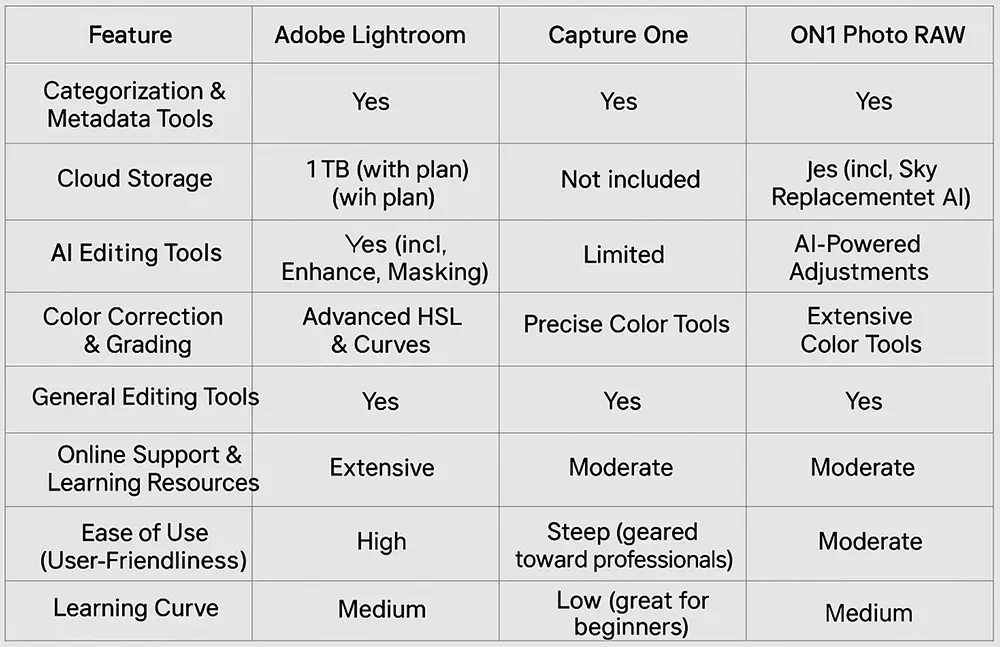
Below, we’ll explore three of the best-paid Lightroom alternatives. Each offers strong organizational tools, RAW editing support, AI-powered enhancements, and varying levels of cloud storage and integration. While they differ in usability, learning curve, and specific features, they all deliver a professional editing experience that rivals—or in some cases, even surpasses—Lightroom.
Top Lightroom Alternatives Compared
Summary of Each Option:
Capture One
Best for: Professional photographers seeking maximum control
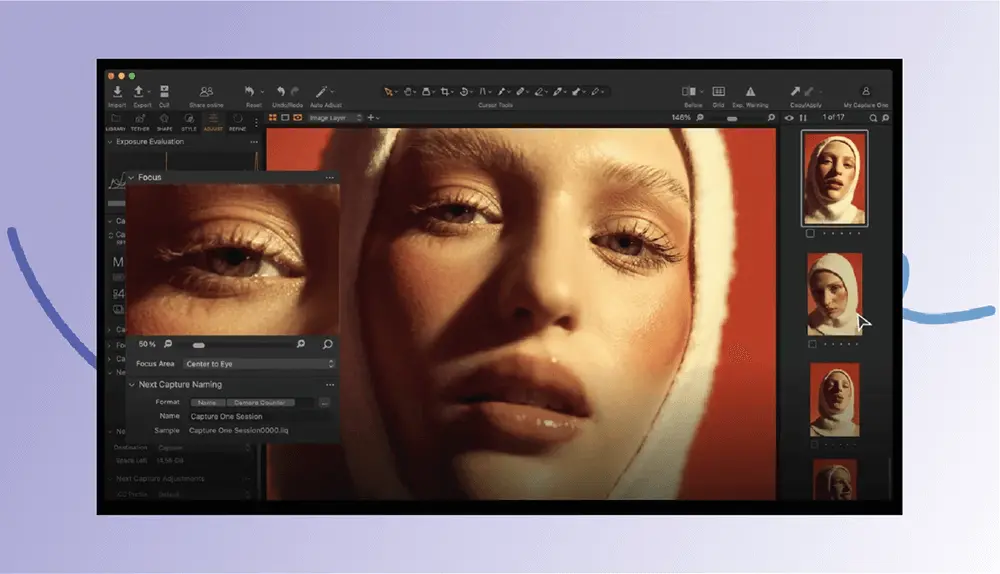
Capture One is a favorite among studio and commercial photographers. It offers superb RAW processing, exceptional color grading tools, and tethered shooting capabilities. While it lacks built-in cloud storage, it more than makes up for it in precision editing—if you’re willing to invest time in learning it.
Luminar Neo
Best for: Creatives and hobbyists who want AI-powered tools
Luminar Neo is a user-friendly option packed with impressive AI features like sky replacement, portrait enhancement, and relighting. It’s ideal for photographers who want to work fast and smart, though its library and cataloging tools aren’t quite as advanced as Lightroom’s.
ON1 Photo RAW MAX
Best for: All-in-one editing with no subscription strings
ON1 Photo RAW MAX combines RAW editing, photo organizing, and powerful AI tools in a single package. It includes cloud syncing with 200GB of storage (via ON1 Cloud Sync), and it supports a wide range of plugins and third-party integrations. A solid middle ground between Lightroom and Luminar.
If you’re exploring alternatives to Lightroom, the good news is that you’re spoiled for choice. Whether you’re after cutting-edge AI tools, a one-time purchase model, or more advanced color grading, these three paid Lightroom alternatives offer smart, capable options to elevate your editing game.
Capture One Pro: A Premium Alternative to Lightroom
Capture One, often referred to as Capture One Pro, is a top-tier photo editing platform built with professionals in mind. Known for its uncompromising image quality, precision controls, and studio-ready capabilities, it’s a favorite among commercial and fashion photographers.
But with premium tools come premium prices—Capture One isn’t cheap. Still, for many creatives, the advanced features more than justify the cost.
Key Features That Set Capture One Apart
- Exceptional RAW Processing: Capture One delivers outstanding image fidelity with vibrant colors, deep tones, and sharp details—thanks to its proprietary color science.
- Advanced Layering & Masking: Enjoy Photoshop-like control with multi-layer editing, precision masking, and powerful local adjustments.
- AI-Assisted Tethered Shooting: For studio shooters, Capture One’s smart tethering capabilities (compatible with many leading camera brands) make it easy to preview, sort, and adjust shots on the fly.
- Customizable Workspace: Tailor the interface to your workflow, with flexible tool tabs, shortcut keys, and a modular design.
- Standard & AI Editing Tools: Easily fine-tune exposure, color balance, white balance, contrast, and more, with help from intelligent automation features.
- What to Consider Before Switching
While Capture One excels in performance, it does come with a few caveats:
- Steeper Learning Curve: With great power comes complexity. Beginners may find the interface less intuitive than Lightroom.
- Limited Plugin Ecosystem: Compared to Lightroom, Capture One offers fewer third-party extensions and community-built tools.
- Higher Cost: Capture One’s pricing is significantly higher than Lightroom’s, especially if you don’t lock into an annual plan.
Capture One Subscription Plans (2025 Pricing)
| Plan | Monthly (Annual Commitment) | Month-to-Month | Best For |
|---|---|---|---|
| Capture One Pro | $14.92/month | $24/month | Individual users looking for core features |
| All-In-One | $21.58/month | $34/month | Power users who want updates, extras & support |
| Studio | $45.75/month | $59/month | Teams & studios needing advanced collaboration |
💡 Tip: Not ready to commit? Try a monthly plan first—then switch to an annual subscription to save up to 37%. Or explore different tiers over a few months to find the perfect fit.
Capture One Pro is a serious tool for serious photographers. If image quality, precise editing, and pro-level tethering are high on your list, this might be your Lightroom alternative of choice. Just be prepared to invest a bit more time—and money—to unlock its full potential.
Skylum Luminar Neo: AI-Powered Creativity for Photographers
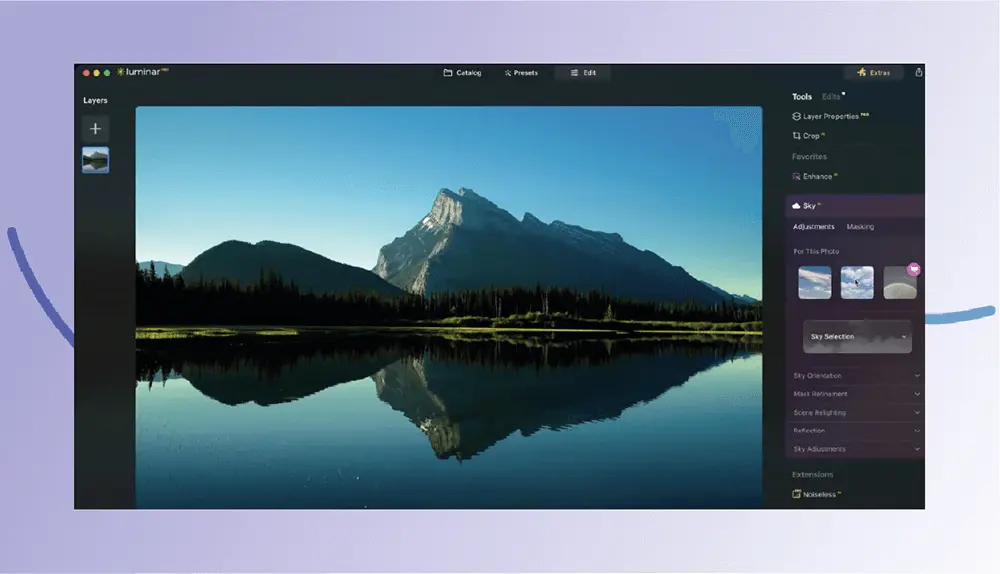
Luminar Neo, developed by Skylum, is a next-gen photo editing tool that blends the simplicity of Lightroom with a dash of Photoshop’s creative edge. Designed with a heavy emphasis on AI automation, it empowers photographers of all skill levels to enhance images with remarkable ease—and without getting buried in sliders and layers.
What makes Luminar Neo truly unique is its ability to simplify complex edits through powerful AI tools, while still offering the flexibility of non-destructive, professional-grade editing.
AI Features That Make Luminar Neo Shine
Luminar Neo doesn’t just assist—it actively enhances your workflow with a suite of intelligent tools:
- Enhance AI: Automatically fine-tunes up to 12 essential image controls with a single slider, giving you instant, balanced results.
- Relight AI: Corrects lighting and exposure in images with tricky or uneven lighting.
- Sky AI: Replaces dull skies with vibrant, dynamic skies in just a few clicks—no masking needed.
- Structure AI: Adds depth and clarity by intelligently sharpening important details without over-processing.
- Face & Skin AI: Smooths facial features and enhances skin tones while maintaining a natural look.
- Crop AI, Body AI, Portrait Bokeh AI and more round out the toolkit for portrait and lifestyle photographers.
Powerful Extensions and Editing Tools
Luminar Neo also includes premium extensions that elevate its capabilities beyond basic editing:
- Noiseless AI & Sharpen AI: Clean up noisy or blurry images without sacrificing detail.
- Upscale AI: Enlarge photos up to 600% with surprisingly sharp results—ideal for printing.
- HDR Merge: Combine up to 10 photos for beautifully balanced high-dynamic-range images.
- Focus Stacking: Blend up to 100 images for unmatched depth and sharpness.
You’ll also get more than 20 additional tools, including erase, clone, matte painting, color harmony, dodge & burn, and more—making it a well-rounded editor for creatives.
Pricing That Keeps You in Control
Luminar Neo offers flexible, budget-friendly pricing:
| Plan | Cost | Best For |
|---|---|---|
| Annual License | $69/year | Users who prefer to pay as they go |
| Lifetime License | $99 one-time | One-and-done users who want long-term value |
💡 Note: Either option represents a significant cost saving over Adobe Lightroom, especially if you’re looking for a pay-once solution.
A Few Considerations
While Luminar Neo excels in automation and creative tools, it’s not without its limitations:
- Learning Curve: The interface is simple, but the AI-powered workflow may take some getting used to, especially for traditional Lightroom users.
- Limited Plugin Support: Unlike Lightroom, Luminar Neo has a smaller ecosystem of third-party plugins.
- Fewer Advanced Controls: Pro-level users may find the control granularity and batch-editing capabilities a bit limited.
Luminar Neo is a smart and affordable alternative to Lightroom, especially for photographers who value speed, automation, and creativity. Its powerful AI tools allow for magazine-quality edits in a fraction of the time—without the recurring subscription costs. If you’re looking to streamline your editing workflow without compromising on quality, Luminar Neo is absolutely worth exploring.
ON1 Photo RAW: All-in-One Editing Without the Subscription
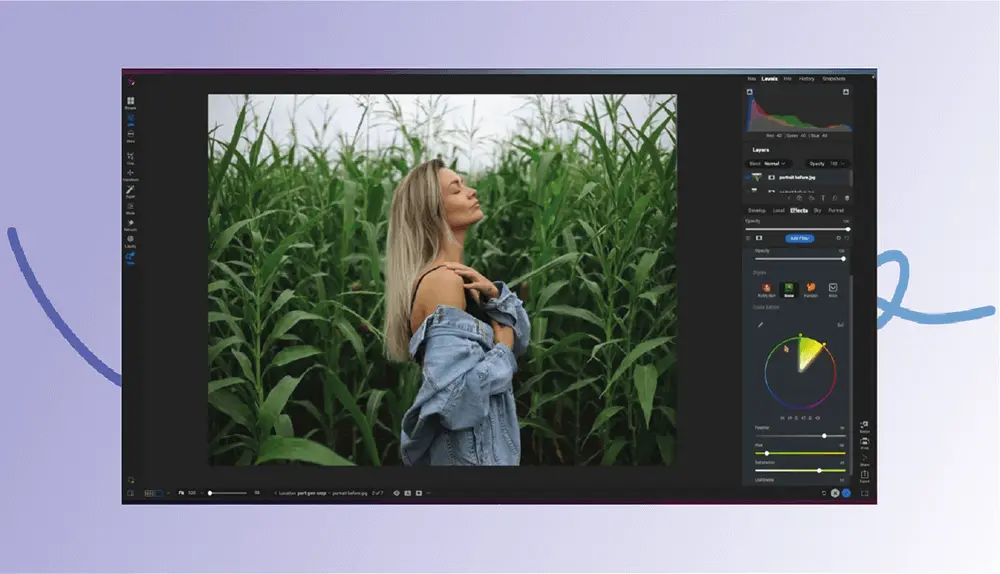
ON1 Photo RAW is a powerful Lightroom alternative that merges professional editing tools, AI enhancements, and non-destructive workflow—all in one user-friendly package. Tailored for photographers who want robust capabilities without recurring fees, ON1 strikes a sweet balance between functionality and affordability.
Core Features That Mirror—and Surpass—Lightroom
ON1 Photo RAW delivers a comprehensive RAW processing engine, allowing fine-tuned adjustments to:
- Exposure, color correction, white balance, and tone
- Non-destructive editing, so your original image data is always safe
Beyond the basics, it introduces AI-powered tools that streamline your workflow:
- Noise Reduction AI: Clean up grainy photos with one click
- Sky Replacement AI: Dramatically enhance dull skies
- Content-Aware Object Removal: Erase distractions with precision
Layers & Masking: ON1 goes a step beyond Lightroom by offering advanced masking and layer-based editing—great for composite work and local adjustments.
User-Friendly and Organized
ON1 makes photo organization seamless:
- Built-in cataloging, keywording, and tagging tools
- Simple cloud sync and backup options
- A clean, intuitive interface that’s easy to learn—even for beginners
Where It Falls Short
While ON1 Photo RAW is an excellent Lightroom substitute, it does come with a few caveats:
- Smaller Online Community: Fewer tutorials and third-party presets compared to Adobe’s ecosystem
- Limited Plugin Integration: Not as many add-ons as Lightroom or Photoshop
Still, for those seeking creative control without Adobe’s subscription model, ON1 offers great value.
ON1 Pricing Plans: Flexible and Ownership-Friendly
| Plan | Cost | Key Features | Usage Rights |
|---|---|---|---|
| Photo RAW 2024 | $99 (one-time) | Full standalone editor with all ON1 apps | Up to 2 computers |
| Photo RAW MAX | $169 (one-time) | Adds integration with Adobe apps + ON1 Cloud Sync | Up to 3 computers |
| ON1 Everything | $7.50/month | Full suite, plug-ins, AI tools, cloud sync, updates | Up to 5 computers |
💡 Tip: If you use both Lightroom and Photoshop, the RAW MAX version may be the best bridge. It gives you ON1’s full capabilities while allowing seamless integration with Adobe’s workflow.
Also Worth Exploring
While ON1 is a standout, a few other quality Lightroom alternatives deserve honorable mentions:
- CyberLink PhotoDirector 365 – Great for creative edits and templates
- DxO PhotoLab – Exceptional image correction and lens profiling
- Corel AfterShot Pro – Fast and affordable RAW editing
ON1 Photo RAW offers a compelling all-in-one editing experience, especially for photographers who value ownership over subscriptions. With powerful AI tools, flexible pricing, and pro-level editing options, it’s an excellent choice for both hobbyists and professionals looking to break free from the Adobe ecosystem.
Best Free Alternatives to Adobe Lightroom: Pro-Grade Editing Without the Price Tag
Not ready to commit to Adobe’s subscription model? You’re not alone—and luckily, there are several powerful, completely free alternatives to Lightroom that offer serious editing capabilities without costing a dime.
Whether you’re just starting out in photography or you’re a seasoned shooter seeking a budget-friendly backup, these free tools—Darktable, RawTherapee, and LightZone—pack a surprising punch. From advanced RAW processing and color correction to non-destructive editing workflows, these programs deliver impressive results without any financial commitment.
And the best part? Unlike paid alternatives that offer just a 7- or 14-day trial, you can use these tools indefinitely—test them, master them, and make them part of your workflow at zero cost.
What Each Free Alternative Brings to the Table
Darktable
Often dubbed the “open-source Lightroom,” Darktable offers a professional-grade toolkit with impressive RAW image handling, exposure blending, tone curves, and color mapping. Its interface mimics Lightroom’s in many ways, making it appealing for experienced users—but the learning curve can be steep for beginners.
Best For: Advanced users looking for a free, pro-level Lightroom replacement.
RawTherapee
This highly configurable editor is known for its exceptional control over image processing. From noise reduction and sharpening to advanced color grading and detail recovery, RawTherapee excels in pixel-level adjustments. However, it lacks some organizational tools and isn’t the most intuitive for casual users.
Best For: Photographers who want maximum control over RAW files without paying a cent.
LightZone
LightZone simplifies the editing process with a zone-based system that’s easy to learn and surprisingly effective. It’s particularly friendly to users who want strong results without diving deep into every technical setting. While it lacks cloud features and some modern editing options, its user-friendly interface makes it a strong candidate for beginners.
Best For: Beginners and hobbyists who prefer ease of use over deep technical controls.
Side-by-Side Comparison
Here’s how these free alternatives stack up against Adobe Lightroom across key categories:
| Feature | Lightroom | RawTherapee | Darktable | LightZone |
|---|---|---|---|---|
| Categorization | Yes | Yes | Limited | Limited |
| Cloud Storage | 1TB w/ Plan | No | No | No |
| AI Tools | Yes | No | No | No |
| Color Correction | Yes | Yes | Yes | Yes |
| General Editing | Yes | Yes | Yes | Yes |
| Online Support | Extensive | Moderate | Moderate | Limited |
| User-Friendliness | High | Moderate | Moderate | High |
| Learning Curve | Moderate | Moderate | Steep | Low |
While free Lightroom alternatives may lack the polish, cloud features, and AI automation of Adobe’s ecosystem, they offer an incredible value—especially for users who prioritize flexibility and long-term cost savings. Whether you’re interested in Darktable’s professional-level editing, RawTherapee’s granular control, or LightZone’s beginner-friendly workflow, there’s something here for everyone.
RawTherapee
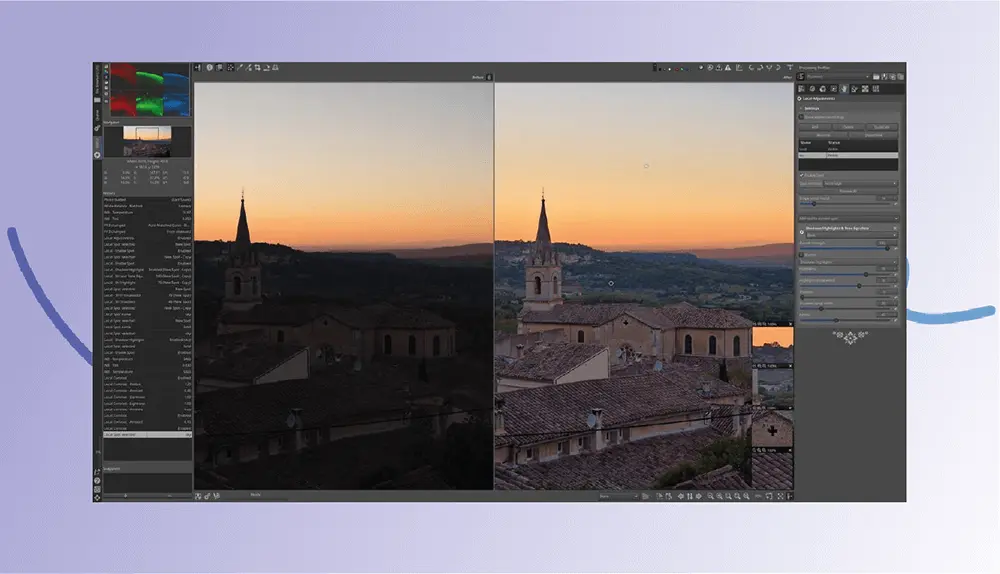
RawTherapee is a highly capable, completely free, and open-source photo editing software that has been developed with a primary focus on processing RAW image files. Unlike typical image editors that work mainly with JPEG or TIFF files, RawTherapee gives photographers full control over the unprocessed, raw data captured by digital cameras. This makes it an especially valuable tool for photographers who want to extract the maximum detail, dynamic range, and tonal quality from their images, ensuring professional-grade results.
One of the most impressive features of RawTherapee is its comprehensive suite of editing tools tailored specifically for RAW processing. Users gain access to precise controls for adjusting exposure, white balance, contrast, and saturation, as well as powerful color correction options that can be fine-tuned to produce highly accurate and vibrant colors. Additionally, RawTherapee excels in noise reduction and image sharpening, two critical aspects for improving image quality, particularly when working with high ISO shots or images taken in challenging lighting conditions. The software also addresses common lens imperfections such as distortion, chromatic aberration, and vignetting, helping photographers to correct these issues without resorting to external plugins or additional software.
RawTherapee supports a wide range of camera models and RAW formats, including popular brands like Canon, Nikon, Sony, and Fuji, among many others. This extensive compatibility ensures that photographers can confidently rely on RawTherapee regardless of their camera choice. Moreover, the software employs a non-destructive editing workflow similar to Adobe Lightroom. This means that all edits are saved as separate instructions rather than permanently altering the original RAW file, allowing photographers to experiment freely without fear of losing original image data. The flexibility to revisit and adjust edits later adds a professional layer of control to the editing process.
Despite these strengths, RawTherapee does have several limitations that potential users should consider. One of the most significant drawbacks is its lack of integrated photo organization features. Unlike Lightroom, which offers comprehensive cataloging, keyword tagging, and collections management to help users keep large photo libraries organized, RawTherapee requires photographers to use external tools or manual file management to organize their images. This can be a drawback for those managing thousands of photos or those who value a streamlined all-in-one workflow.
The user interface, while functional and rich in features, is not particularly intuitive or user-friendly, especially for beginners. Navigating the myriad of sliders, panels, and menus can initially feel overwhelming, and mastering the software demands patience and time. This steep learning curve might discourage casual photographers or those new to RAW editing, although more experienced users tend to appreciate the depth of control once they become accustomed to it.
Another aspect to consider is the lack of cloud integration or mobile platform support. In an era where seamless syncing across devices is highly valued, RawTherapee’s desktop-only setup means users cannot easily access or edit their photos on mobile devices or through cloud services. This limitation might affect photographers who need to work on the go or collaborate across multiple devices and locations.
In summary, RawTherapee stands out as an excellent, high-performance alternative for photographers who shoot in RAW and seek powerful editing capabilities without the cost associated with commercial software like Adobe Lightroom. While it demands a bit more effort to learn and does not provide built-in tools for photo management or cross-device workflows, it offers a robust set of professional-grade tools focused on image quality and customization. Photographers who prioritize control over convenience will find RawTherapee to be a valuable addition to their editing toolkit.
Darktable
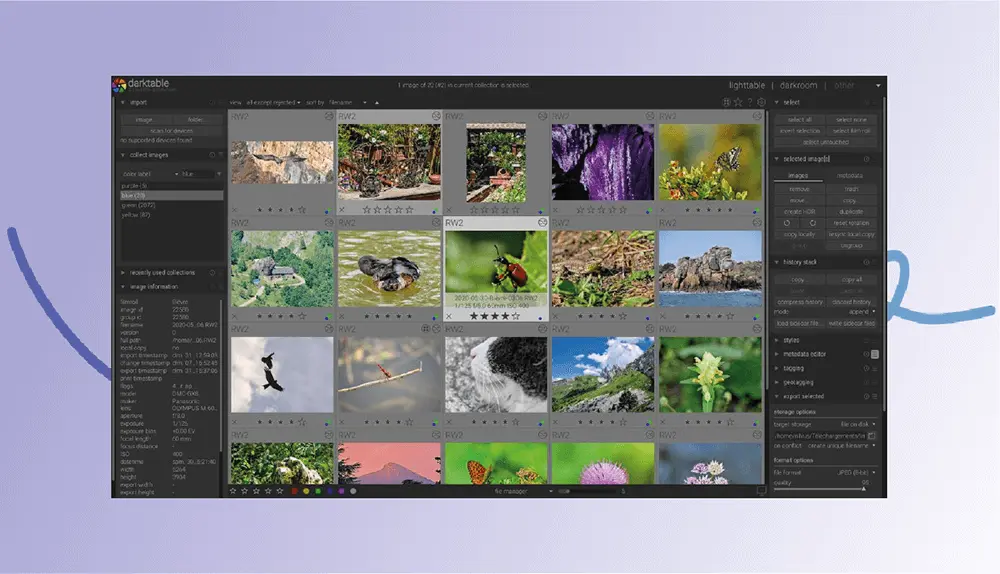
Darktable is another robust open-source photo editing software that stands out for its exceptional RAW processing capabilities, positioning itself as a compelling free alternative to Adobe Lightroom. Designed with photographers in mind, Darktable offers a comprehensive suite of powerful post-processing tools that rival those found in commercial software, making it well-suited for users seeking professional-grade image editing without the associated costs. One of its key strengths lies in its non-destructive editing workflow, which ensures that original image files remain untouched regardless of how extensively they are adjusted, allowing photographers to experiment freely while preserving their raw data.
Beyond its editing prowess, Darktable distinguishes itself with a solid photo management system that includes keyword tagging, star ratings, and collections, offering organizational features that closely mirror Lightroom’s cataloging capabilities. This integrated approach helps photographers keep large image libraries well-organized and easily searchable, streamlining their workflow in ways that many other free editors lack. Furthermore, Darktable’s editing modules often go beyond Lightroom’s scope, incorporating specialized tools that resemble the layer-based and detailed adjustments typically associated with Photoshop. This makes Darktable particularly appealing to advanced users who crave finer control over specific aspects of their images.
However, Darktable’s extensive feature set comes with a steeper learning curve. Many photographers find the interface less intuitive compared to Lightroom, which can make initial adoption challenging for those new to RAW editing or digital post-processing. This complexity demands time and patience to master, but the payoff is a highly customizable and powerful editing environment once proficiency is achieved. Another limitation to note is its minimal support for cloud integration and mobile editing, which can restrict seamless workflows across multiple devices—an area where commercial software often excels. Additionally, as an open-source project, Darktable does not provide traditional customer support; instead, users rely heavily on an active community for guidance, troubleshooting, and tips. While this collaborative support network can be a valuable resource, it may not offer the immediacy or depth of assistance some users expect.
In conclusion, Darktable represents a sophisticated and feature-rich option for photographers seeking an advanced, free alternative to Lightroom. Its blend of strong RAW processing, competent photo management, and Photoshop-like editing modules makes it particularly suited for users willing to invest time in learning its complexities. For those prioritizing cost-effectiveness and customization over ease of use and cloud-based convenience, Darktable offers a powerful platform to elevate photographic editing to a professional level.
LightZone
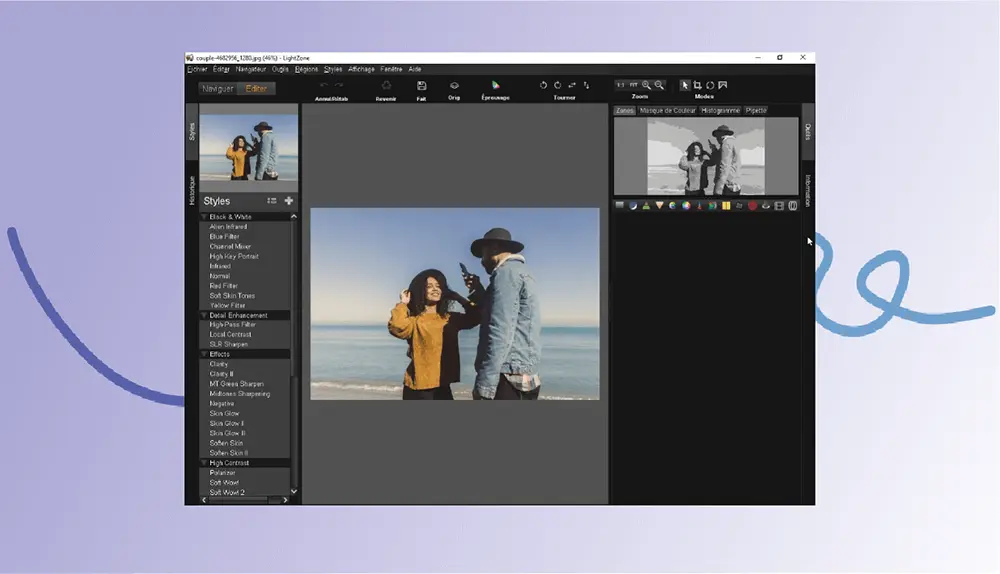
LightZone is a distinctive and powerful free, open-source photo editing software tailored specifically for RAW image processing. Like RawTherapee and Darktable, it embraces a non-destructive editing workflow, ensuring that photographers can experiment and refine their images without ever altering the original files. What sets LightZone apart is its user-friendly interface, which is generally considered more approachable and easier to master compared to its counterparts, making it an attractive choice for both beginners and experienced photographers seeking efficient tonal control without a steep learning curve.
A standout feature of LightZone is its innovative use of the “zone system” for tonal adjustments—a method inspired by the legendary photographer Ansel Adams. This system allows users to precisely target and manipulate specific tonal ranges within an image, such as shadows, midtones, and highlights, with remarkable accuracy and ease. By breaking down the tonal spectrum into distinct zones, LightZone empowers users to achieve balanced exposures and nuanced contrast adjustments that bring out the full depth and detail of their photographs. This intuitive approach to tonal editing not only enhances creative control but also makes complex adjustments accessible to novices who may find traditional tools overwhelming.
Despite these advantages, LightZone does share some limitations common to free, open-source editing software. Its photo cataloging and organizational features remain minimal and cannot compete with the sophisticated library management offered by commercial software like Adobe Lightroom. Users seeking advanced keyword tagging, collections, or seamless image management may find these aspects lacking. Additionally, LightZone does not incorporate AI-powered tools that have become increasingly prevalent in modern photo editing, such as automated subject selection or intelligent enhancement features. Support for the software is community-driven rather than through dedicated customer service, which means users may need to rely on forums and peer assistance for troubleshooting and guidance.
In essence, LightZone stands out as an excellent choice for photographers who value precise tonal control through its unique zone system and desire a simpler, more accessible editing interface without financial cost. While it may not fulfill all the organizational or AI-enhanced expectations of today’s photo editors, its blend of ease-of-use and powerful tonal adjustment tools makes it a noteworthy option for anyone looking to harness the artistic potential of RAW processing.